

 Item
Master
Item
Master
Item
Master
Item
Master
|
Master -> Item Master |
To begin, the first step is creating items within our software. For instance, in our jewelry software, we need to establish categories such as gold items, diamond items, silver items, and more—essentially, all the types of jewelry metals we intend to sell. The process of how items are created in the item master is outlined below:
As shown in the image, each option serves a specific purpose as described below:
Add: Use this option to create a new item in the software. Choose 'Add' when you need to introduce a new item into the system.
Modify: Select 'Modify' when you want to update an existing item. This could involve changes to the item's name, GST details, or other relevant information.
Delete: The 'Delete' option is used to remove an item from the system. However, please note that certain items cannot be deleted if they have associated transactions such as sales or purchases.
View: Users can use the 'View' mode to access item details without the ability to create, modify, or delete items. This is typically used to allow users to review item information without making changes.
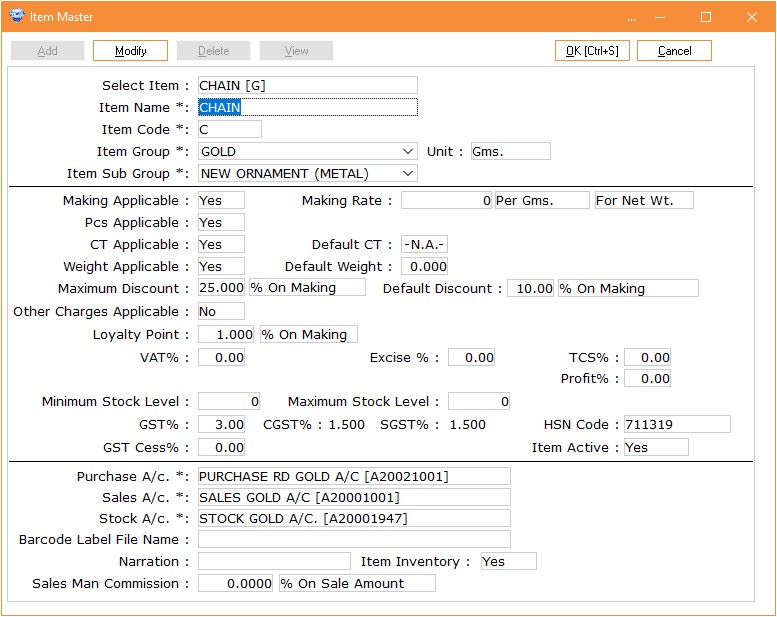
Column Details :
Item Name Enter the item name, such as Chain, Bracelet, Ring,
etc." Item Code Item Code
Requirements: Non-Modifiable: Once set, the item code cannot be modified. Character Limit: The total length of the item code is between 1 and
4 characters. Letters and Digits: The code should contain only letters and digits. Digits Between Letters: Digits are only allowed if they are placed between
letters. Valid
Examples: A95B P HK A8P Invalid
Examples: 1234 (only
digits) A5B6 (digits
not between letters) AB12 (digits
not between letters) 1 (single
digit) A1 (digit at
the end) 4D (digit at the start) Item Group Select Particular Group from drop down list. It
contains Gold, Silver, Fixed Price Item, Diamond, Stone, Platinum
etc. Unit The unit will
be automatically selected based on the group you choose. You can then
change the unit if needed, with the following options: Gms for Gold
& Silver items PCS for Fixed
Price Items CT for Diamond and Stone items Item Sub Group The subgroups
will be automatically selected as follows: New Colour
Stone for Stone items New Diamond
for Diamond items New Ornament
Metal for Gold & Silver items Old Colour
Stone for Old Stones Old Diamond
for Old Diamonds Old Ornament
Metal for Old Gold and Old Silver Other for
Expenditure or Fixed Price Items Making Applicable The option will automatically be selected as Yes or
No based on the chosen group. This feature is only applicable to Gold,
Silver, and Platinum items. Making Rate If the item is Gold, Silver, or Platinum, this option
will be enabled. You can enter the making rate for the specific item here,
so you don't need to input it every time. The system will automatically
use the making rate set in the item master. Making On Here, you
need to select the option on which you want to apply the making rate. You
can choose from the following options: Per Gms:
Apply the making rate per gram. Per Pcs:
Apply the making rate per piece. Category Gms:
Apply the making rate per gram based on the category. Category Pcs:
Apply the making rate per piece based on the category. Wastage:
Apply the making rate based on the wastage percentage. If you have
created a Making Category, it will be displayed in the Making Rate
column. For Here, you can select the weight type on which you
want to apply the making rate. For example, you can choose to apply it on
Net Weight or Gross Weight. PCS Applicable You can
choose Yes or No for whether PCS (pieces) is applicable. If you maintain
the item in pieces, select Yes. If you manage stock in bulk or by weight,
select No. CT Applicable You can
choose Yes or No for whether Carat is applicable for a particular item.
Note that Carat is applicable only for Gold and Platinum
items. Default CT This allows
you to specify the Carat that will be used by default for items sold at a
specific Carat, such as Vedhni or Finebar. Weight Applicable If you are selling items by weight, such as Gold,
Silver, Platinum, or Diamond items, select 'Yes' for weight applicable. If
you are selling items at a fixed price or managing them by pieces, select
'No' for weight applicable. Default Weight You can also
set a default weight for a particular item. For example, if an item is
always sold at a specific weight, you can configure this default weight.
Whenever you process a transaction for that item, the weight will
automatically be filled with the weight set in the item
master. Maximum
Discount If you set a
maximum discount, the salesman will not be able to offer a discount
greater than the percentage specified in the item master. This option
allows you to set the maximum discount for specific bases, which can be
selected from the drop-down menu. The available bases include: Discount on
Making Discount on
Amount Discount on
Rate Discount on
Other Charges Discount in
Rs on PCS Discount on
Full Discount in
Rs on Making Rate Default
Discount Default
discount allows you to apply a standard discount to a particular item. You
can set this default discount using the following options: Discount on
Making Discount on
Amount Discount on
Rate Discount on
Other Charges Discount in
Rs on PCS Discount on
Full Discount in
Rs on Making Rate Other Charges Applicable You can
select here from both Yes or No Options. Loyalty Points For every purchase of an item, we can set loyalty
points that can be redeemed on the customer's next purchase. TCS % ‘Tax
Collected at Source (TCS)’ is a tax mechanism where the seller collects
tax from the buyer at the point of sale. If you wish to set the TCS
percentage, you can do so here. Sale
Rate/Price You can set
the sale rate here, but this option is only active when creating items
with a unit of measurement as ‘pcs’ (pieces). For items measured in ‘Gms’
(grams), the transaction will be based on weight and may involve
fluctuating rates. Therefore, the option to set a fixed sale rate applies
only to items with a non-fluctuating rate. Purchase
Rate/Price The purchase
rate option will also be active when the unit is set to ‘pcs’
(pieces), as explained in above column This is because items measured in
pieces have a fixed rate, unlike those measured in grams, which are
subject to fluctuating rates. Profit% Profit % will be calculated based on the sale and
purchase rates. Minimum Stock
Level We can set a minimum stock level for the particular
item we are creating. This will be reflected in the item performance
report, showing both the closing balance of the item and our minimum stock
limit. Maximum Stock
Level We can also
set maximum level of stock GST % You can enter the GST rate (e.g., 3%) for a
particular item in this column. It will automatically be split into CGST
and SGST percentages. HSN Code Here, you can enter the HSN code related to the
item. GST Cess% You can add the cess percentage
here. Item Active
If you want
to deactivate this item in the future, you can do so, as deletion is not
possible once any transactions have been made. Purchase A/c Select the purchase a/c, E.g. Purchase RD(gold),
purchase URD(gold) Sales A/c Select the sale a/c, E.g. Sale (Gold), Sale
(Diamond) Stock A/c Select the closing stock account of the item, E.g.
gold stock a/c. Barcode Label File Name You can select label name for items which will be
selected default while labelling. Narration You can enter any additional information related to
the item here if a specific column is not provided in the item master for
your convenience. Item
Inventory If you want to maintain stock for the item, select ‘Yes’; if
not, select ‘No’. Sales Man Commission Here, you can enter the percentage for the salesman’s
commission, which will be calculated based on the sale amount of that
particular item. On You can set
the salesman’s commission based on any of the following
options: % on sale
amount Per
weight Per piece % on making
amount
Visual Demo :
Item
Master Creation Item
Deactivation Feature Item Master Update about Category Default
Discount Application