

 Item Group
Master
Item Group
Master
Item Group
Master
Item Group
Master
|
Master -> Item Group Master |
The Group feature represents your primary trading categories, which are pre-defined in the software as Gold, Silver, Diamond, Fixed Price Item, Platinum, Stone, and others. This screen allows you to:
- Create new trading categories, if needed, such as separating Fine Gold from Ornament Gold
- Deactivate unused trading categories to prevent accidental selection
By utilizing this feature, you can customize your trading categories to align with your specific business requirements, ensuring a more organized and efficient inventory management system.
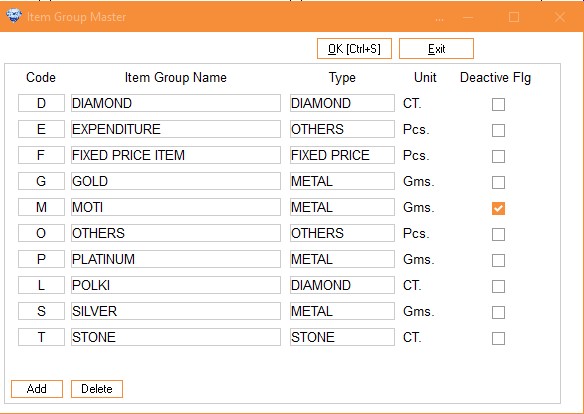
Column Details :
|
Code |
Enter the code for the item group as shown in the image
above. |
|
Item group
name |
Please enter the name of the item group. Specify the type of
ornaments you plan to sell in your shop. It could be solely silver, or a
mix of metals such as gold, silver, platinum, etc. Most jewelers offer a
variety of metals, including diamond and gemstone pieces. It's up to you
to decide which item group you want to create. |
|
Type |
Select the particular type from the drop-down list. For
example, Diamond, Metal, Fixed Price, CT, or others. The selection of type
depends on the unit. For instance, diamonds and stones are measured in CT,
while gold, silver, and platinum are measured in GM. Fixed price items are
usually measured in pcs. If your item doesn't fall into any of these
categories, you can select 'Other' in the type
option. |
|
Unit |
The unit will be automatically selected based on the type of
item you choose from the drop-down list. |
|
Add |
To add the new item group clicks on
Add. |
|
Delete |
To delete an item group, follow these
steps:
Note: If there have been any transactions involving
items in this group, the group cannot be
deleted |
|
Deactive
Flag |
As mentioned in the 'Delete' column above, we cannot delete
an item group if any transactions have been made with its items.
Therefore, this option is for deactivating the item group. Once
deactivated, new items cannot be created in this group, and it will not
appear in any suggestions, preventing any user mistake. However, the
history of the item group will still be accessible for
analysis. |
|
OK |
To save the item group clicks on
OK. |