

 URD Purchase
Note
URD Purchase
Note
URD Purchase
Note
URD Purchase
Note
|
Counter > URD Purchase Note |
The URD Purchase Note screen streamlines sales transactions by enabling sales personnel to create digital notes on their tablets/counter pc's, which automatically display transaction details to cashiers upon entry of the card number, enhancing productivity, reducing errors, and improving customer experience.
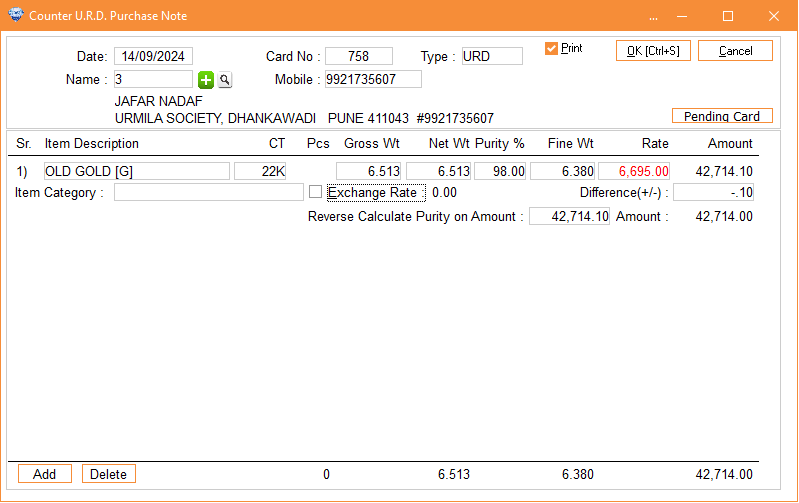
Column Details :
|
Date |
The date shown is the one on which you are creating the URD
note. |
|
Card No. |
If you manage customer purchases using cards, please enter
the card number for the URD Purchase Note. This ensures accurate
tracking and recording of transactions linked to the specific card,
streamlining your purchase documentation and record-keeping
process. |
|
Type |
Please select the type: either URD or
Order. |
|
Print
Card |
If you tick this option, the card will be
automatically printed. If you do not tick it, the card will simply
be saved without printing. |
|
Name |
Here, you’ll see an option with a plus sign. Click on it to
create a customer CRM account, which will make it easier for the cashier
to process the bill. Additionally, if the CRM account is already created,
you can search for it by clicking on the search
option. |
|
Mobile
Number |
The option for the mobile number is provided so you can
search for the customer CRM account by number, making the salesperson’s
work more efficient. |
|
Item
Description |
Select the specific item for the URD transaction, such as
Old Gold, Old Silver, Old Stone, etc. This ensures
the correct item type is recorded for the
transaction. |
|
Item
Category |
Here, you can select the item category if you have
created one. |
|
Caret |
Select Carat. |
|
Gross
Wt. |
Enter Gross weight of selected
item. |
|
Purity |
Enter purity of selected item. |
|
Net Wt. |
Based on the Gross Weight and Purity, the net
weight will be automatically calculated. |
|
Rate |
It will automatically take the rate from Today’s Rate
Master. |
|
Amount |
It will automatically calculates the amount based on Net
Wt. |
|
Exchange
Rate |
If you want to apply the exchange rate, you can click on this
option. |
|
Difference |
Here, you can enter the amount for rounding off the total..
If you do not enter software can also calculate it automatically.
|
|
Reverse Calculate Purity On
Amount |
This is the option where you can enter the amount directly.
Based on this, the purity and fine weight will be
determined. |
|
Add |
If you want to add any item then you can click on Add
button. |
|
Delete |
If you want to delete any item then you can click on Delete
button. |