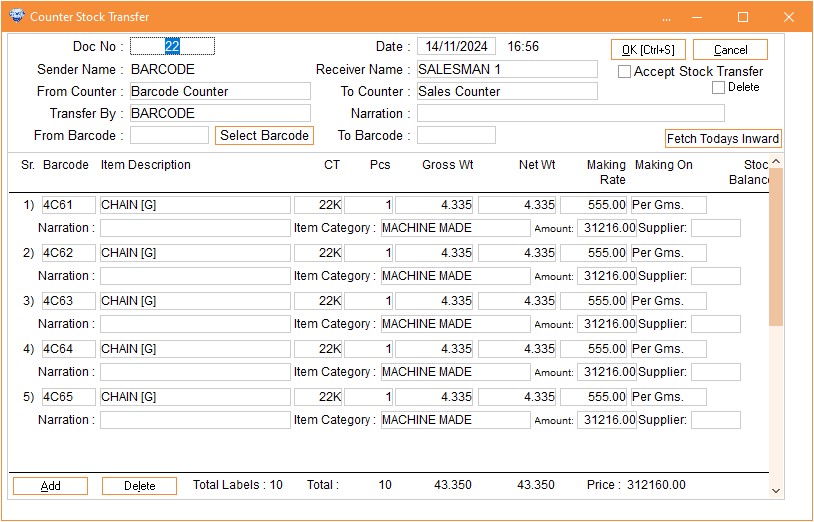
Counter Stock Transfer
Counter Stock Transfer
Counter Stock Transfer
|
Counter -> Counter Stock Transfer |
Manage Your Shop's Stock Movement Efficiently
This screen streamlines the tracking and movement of inventory within your shop. Here's how it works:
- Ornaments received via Purchase RD, Jama Voucher, or Jangad Jama are initially inwarded into the Gold Strong Room or Purchase Counter.
- Next, they are transferred to the Barcode Counter for labeling.
- Once labeled, the stock is moved to the Sales Counter for display.
- At the end of each day, all stock at the Cashier's Counter is securely transferred either back to the Owner's Gold Strong Room or the designated counter.
This voucher automates and simplifies the entire stock movement process, ensuring accurate tracking and efficient inventory management.
Column Details :
|
Doc no |
System
generates the doc no. automatically. |
|
Sender
No. |
It
will automatically take the sender’s name based on logged in
user. |
|
From
Counter |
It
will automatically take the counter which is assigned to the logged in
user. |
|
Transfer
By |
You
can select here the username from drop down
list. |
|
Receiver
Name |
Select
particular user from drop down list to which you want transfer
stock. |
|
To
Counter |
It
will automatically take the counter assigned to selected
user. |
|
Narration |
Here
you can enter narration about this stock transfer
document. |
|
From
Barcode, To
Barcode |
Here
you can enter the barcode range of particular item so that you need not
enter single barcode. |
|
Barcode |
If
you want to transfer the labelled item from barcode counter to Sales or
another counter then scan or enter the barcode in this
column. |
|
Item
Description |
Select
particular item which you want to transfer. For e.g. Chain, Bracelet,
Bangles etc. |
|
Narration |
Here
you can enter any narration about the selected
item. |
|
Caret |
Select
particular Carat. |
|
PCS |
Enter
the pieces. |
|
Gross
Wt. |
Enter
Gross weight of selected item. |
|
Net
Wt. |
Enter
the net weight of item. |
|
Making
Rate |
Enter
the making Rate for selected item. |
|
Making
On |
You
can select making on Gms, Pcs, Category Pcs
etc. |
|
Item
Category |
You
can select Category for selected item if you want to transfer categorized
stock. |
|
Price |
You
can enter here the price for Fixed Price Item. |
|
Supplier |
If
you want to add the supplier from which this stock has received then you
can enter it in Supplier column. |
|
Add |
If
you want to add any item then you can click on Add
button. |
|
Delete |
If
you want to delete any item then you can click on Delete
button. |
|
Select
Barcode |
When
you click on this button the small screen will open where you can see the
present barcode on the logged in user’s counter. From this list you can
select the barcode to transfer. Maximum 71 barcodes you can select
here. |
|
Fetch
Today’s Inward |
This
is for Cashier user. Whatever the Old Gold/Silver, Sales Return Item or
the RNG stock they will receive in a day, that will be transfer to Gold
Strong Room Counter at the End of the Day. So, when you click on this item
it will fetch the inward stock on the logged in user’s counter stock. So
you do not have to manually enter the stock one by one which is time
consuming. |
|
Fetch
All Yesterday’s Stock |
This
button will appear only when we select the RNG Counter in the From
Counter. When you want to transfer the RNG stock to another counter you
can use this feature. If you click on this button it will fetch all the
stock present on RNG counter and you can transfer this stock to required
counter. |
Visual Demo :