

 Order Delivery
Note
Order Delivery
Note
Order Delivery
Note
Order Delivery
Note
|
Counter -> Order Delivery Note |
Just like the Counter Delivery Note, you can easily create Customer Orders for bookings and new orders. This feature streamlines the process, reducing the workload for your cashier and enhancing efficiency.
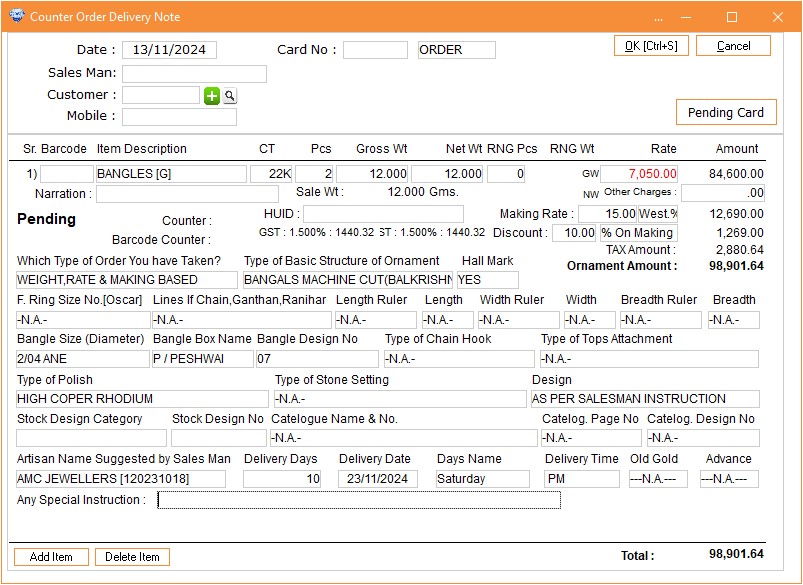
Column Details :
|
Doc no |
The system automatically generates the
document number for you, ensuring accuracy and saving time |
|
Date |
The system automatically generates the
date |
|
Order |
Select 'Order' for new bookings and 'Repair
Order' for repair-related tasks. |
|
Barcode |
If the item has a barcode, simply scan it.
Otherwise, select the item from the item list. |
|
Item
Description |
From here, you can select items that do not
have a barcode created yet. |
|
CRT |
Select
the caret of the item. |
|
PCS/Qty |
Type the
order quantity. |
|
Gross
Wt. |
Type the
gross weight of the item. |
|
Net
Wt. |
Enter the net weight here. |
|
RNG
Wt. |
The RNG weight option will be enabled only if
you’ve taken the order for a labeled
item. |
|
Sale
Wt. |
If there is RNG weight in the order note, the
sale weight will be calculated as gross weight minus RNG weight. If there
is no RNG weight, the gross weight will be displayed as the sale
weight. |
|
Rate |
It will
automatically take the rate from Today’s Rate
Master. |
|
Making
Rate |
Enter the making rate for the selected item.
If no barcode is selected, you can manually enter the rate. However, if
you select a barcode with a predefined making rate, it will be
automatically fetched. |
|
Making
On |
Select the applicable making type, whether
it's based on grams (gms) or pieces (Pcs). |
|
Amount |
The total amount is calculated and displayed
automatically. |
|
CGST
& SGST |
The system will automatically calculate the
CGST and SGST amounts based on the GST percentage defined in the Item
Master for that specific item. |
|
Delivery
Date |
Select the specific date on which you wish
to deliver the order. |
You can also select additional details based on the items in the order. For example, if the customer has ordered a chain, you will need to fill in the following details:
Visual Demo :
|
Counter Order Note Tutorial |
Tablet : Counter Order Note Tutorial |