

 Kanban
Master
Kanban
Master
Kanban
Master
Kanban
Master
Transaction -> Kanban Master |
What is mean by Kanban ?
Kanban (signboard or billboard in Japanese) is a scheduling system for lean manufacturing and just-in-time manufacturing. Kanban became an effective tool to support running a production system as a whole, and an excellent way to promote improvement. A goal of the kanban system is to limit the buildup of excess inventory at any point in production.
Streamline Your Inventory Management with Our Kanban Process
Our software's Kanban feature provides a detailed, end-to-end view of your inventory's lifecycle, from purchase to sale. This powerful tool enables you to:
- Identify and prioritize fast-moving items, ensuring you stock the most in-demand ornaments
- Eliminate dead or excess stock, reducing waste and optimizing storage space
- Accelerate labeling processes, saving time and increasing efficiency
By leveraging our Kanban process, you'll be able to make data-driven decisions, refine your inventory management, and drive business growth.
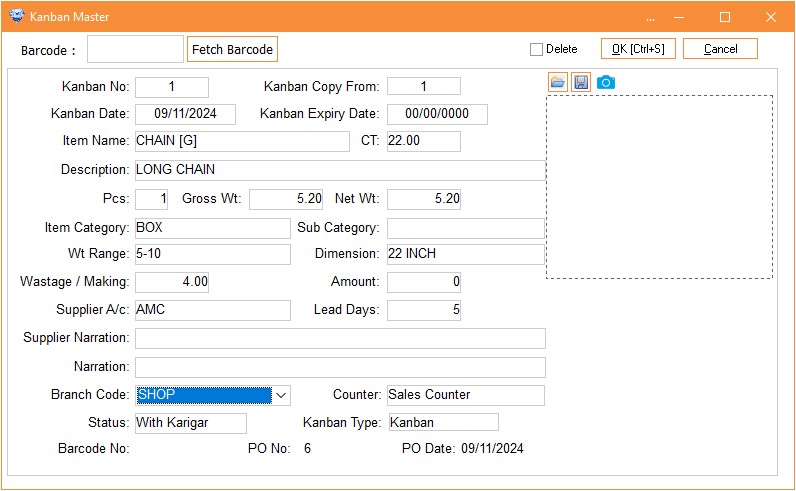
Column Details :
|
Fetch Barcode |
Simplify
your Kanban creation process with our innovative barcode scan feature.
Just enter the barcode number of the item you want to create a Kanban for,
and our system will automatically populate the relevant details. You can
then easily add any additional information required, and your new Kanban
will be ready. This feature saves you time, reduces errors, and
streamlines your inventory management process. |
|
Kanban
No. |
It will automatically take the kanban no. |
|
Kanban
Copy From |
Save
time and streamline your Kanban creation process with our intuitive
duplicate feature. When you need to create a new Kanban with similar
details to an existing one, simply enter the Kanban number of the original
master and our system will replicate the details. You can then easily
modify the necessary fields to create a new, unique Kanban. This feature
eliminates redundant data entry, reducing errors and increasing
productivity. |
|
Kanban
Date |
It
will take system’s current date. |
|
Kanban
Expiry Date |
To
ensure your inventory remains relevant and up-to-date, our software allows
you to set an expiry date for Kanbans that are no longer in demand. Simply
review your reports, identify Kanbans that haven't been ordered in a
while, and assign an expiry date to prevent future orders. This feature
enables you to maintain a lean and agile inventory, eliminating
unnecessary stock and minimizing waste. |
|
Item
Name |
Here
you can select the item name for which you want to make a
kanban. |
|
Description |
You
can enter the description about the selected item. Here you can describe
your item in detail. |
|
PCS |
Enter
Pieces of an item. |
|
Gross
Wt. |
Enter
Gross Weight of an item. |
|
Net
Wt. |
Enter
Net weight of an item. |
|
Item
Category |
Here
you have to select the category for an item. |
|
Sub
Category |
In
this column you have to enter the uniqueness of the item and the category
you have selected. |
|
Wt
Range |
Enter
the particular Weight Range for selected item.
|
|
Dimension |
Enter
the dimension for the selected item. For E.g. for Chain item it will be
its length, for bangles and finger ring items it will be its
size. |
|
Wastage
/ Making |
Enter
the making rate whether it will be in amount or in wastage
%. |
|
Amount |
Enter
the amount for that item (if any). |
|
Supplier
A/c |
Select
the supplier’s a/c from which you purchase selected
item. |
|
Lead
Days |
Enter
the days within which the selected item will be available to you. You can
call it as a manufacturing time. |
|
Supplier
Narration |
If
you want to add narration about the selected supplier then enter it
in this column. |
|
Narration |
Enter
the narration about the selected item. |
|
Branch
Code |
You
can make this kanban branch wise so here you have to select the branch’s
name for which this kanban has been made. |
|
Counter |
Select
the counter within the particular selected
branch. |
|
Status |
Our
Kanban system utilizes four distinct statuses to track the progress of
your inventory workflow. These statuses ensure seamless monitoring and
management of your stock: 1.
Pending: Newly created Kanbans are assigned this status, indicating
that they are awaiting further action. 2.
Counter: When a label is generated for an item using the Kanban
number in the Ref No. column, the status is updated to Counter, signifying
that the item is ready for sale. 3.
Purchase: Once the labeled item is sold and linked to the Kanban
number, the status is changed to Purchase, indicating that the item needs
to be replenished. 4.
With Karigar: When a Purchase Order is issued to the supplier using
the Kanban number, the status is updated to With Karigar, confirming that
the order is being processed by the supplier. These
statuses provide a clear and structured approach to managing your
inventory workflow, ensuring efficient tracking and replenishment of
stock. |
|
Kanban
Type |
This
screen serves as a gateway to two powerful inventory management tools.
Please select one of the following options to
proceed: Kanban:
Create a Kanban master to streamline your inventory process, enabling you
to efficiently manage stock levels, track movements, and optimize
replenishment. Catalog:
Generate a comprehensive catalog of your stock, providing a centralized
repository of item details, descriptions, and specifications. This feature
is ideal for creating product catalogs, inventory listings, and
more. |
|
Barcode
No. |
It
will display the Barcode No. to which particular Kanban has been
linked. |
|
PO
No. |
It
will display the Purchase order no. in which you have given the purchase
order of this kanban to supplier. |
|
PO
Date |
It
will display date of Purchase
Order. |