

 Item Category
Master
Item Category
Master
Item Category
Master
Item Category
Master
Master -> Item Category Master |
Stock Management |
Effective inventory management is crucial for a successful jewelry business. To streamline stock movement and drive growth, jewelers must categorize their inventory using an Item Category Master. This system organizes items into distinct categories, enabling easy tracking of sales and stock levels. When purchasing ornaments from suppliers, categorization helps identify top-selling items, weight ranges, and slow-moving stock. For instance, categorizing chains into subcategories like Handmade, Machine-made, Box, Casting, Italian, and Indrajeet allows for detailed reports on sales, stock balance, and weight. By implementing this system, jewelers can refine their inventory management, make informed decisions, and boost business growth.
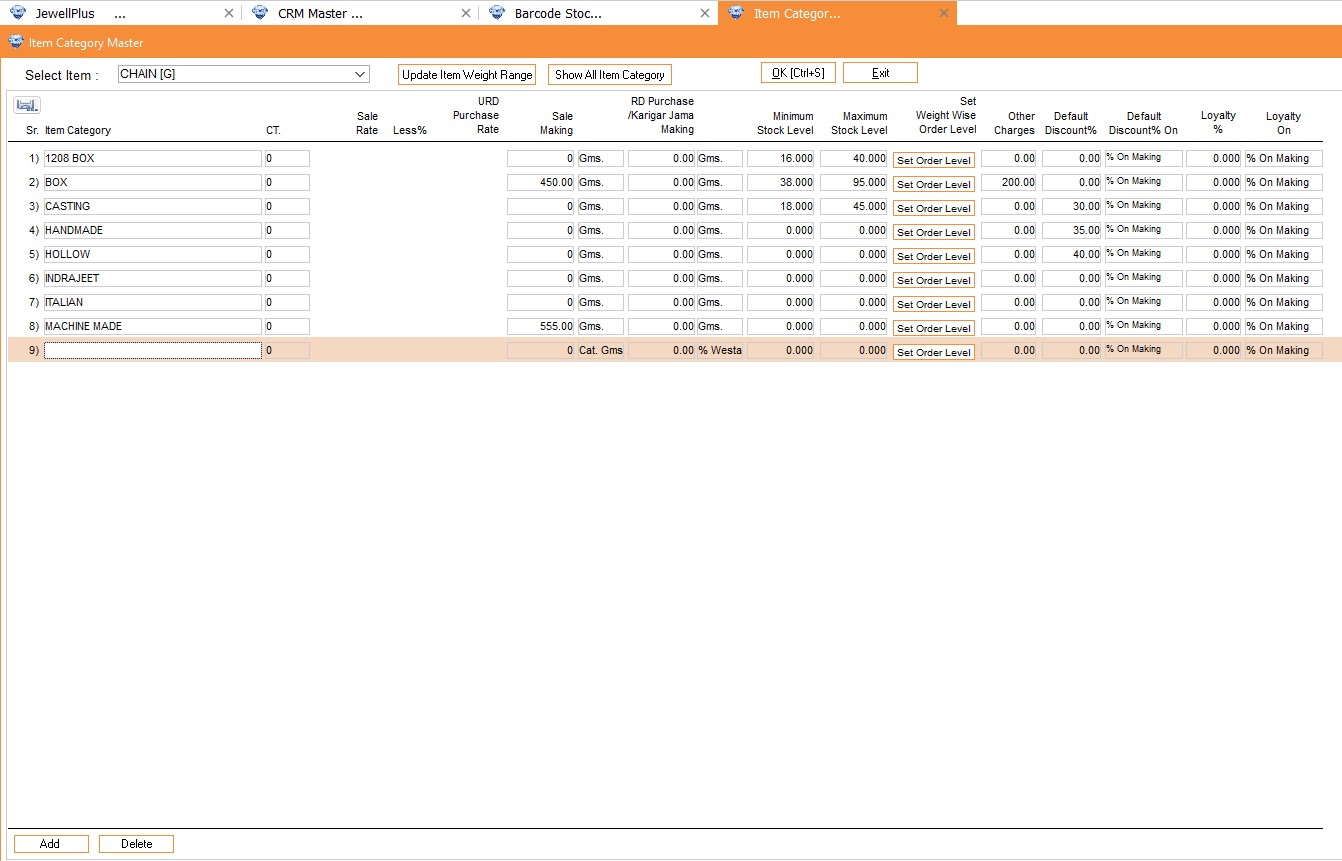
Column Details :
|
Select Item |
Select the Item
Name from drop down list for which you want to create drop down
list. |
|
Item Category |
Enter the name for
category. |
|
CT |
Select the default
carat for the Category. |
|
Sale Rate |
It is applicable
only when category is created for Fixed Price items. Enter the sale rate
for particular category. |
|
Less % |
Enter the Less %
here for Fixed Price item’s category. |
|
URD Purchase
Rate |
Here depending on
Sale Rate and Less % it takes the URD Purchase
Rate. |
|
Sale Making |
Here you can enter
the Making Rate of Sale |
|
Making On |
Here you have to
select the option on which you have to apply Making Rate. For e.g. You can
select from following options : 1. Per Gms for
applying making rate on grams. 2. Per Pcs for
applying making rate on pieces. 3. Category Gms for
applying making rate on Gms Category wise. 4. Category PCS for
applying making rate on PCS Category wise. If you have created
Making Category then you can see in Makin Rate
Column. |
|
RD Purchase/Karigar Jama
Making |
Enter the making
rate which will effect in Purchase RD Rate or the making rate which is
applied by Karigar while Jama. It depends on the gms and the wastage
%. |
|
Making On |
Here you have to
select the option on which you have to apply Making Rate. For e.g. You can
select from following options : 1. Per Gms for
applying making rate on grams. 2. Per Pcs for
applying making rate on pieces. 3. Category Gms for
applying making rate on Gms Category wise. 4. Category PCS for
applying making rate on PCS Category wise. If you have created
Making Category then you can see in Makin Rate
Column. |
|
Minimum Stock Level |
It will fetch
automatically when we set the order level for that
category. |
|
Maximum Stock Level |
It will fetch
automatically when we set the order level for that
category. |
|
Set Order Level |
In this we can set
the Minimum Pieces and Maximum Pieces to order when the stock will go less
than or equals to Minimum Pieces. Here you can set different Order Level
Branch Wise Also. |
|
Other Charges |
If you want to
apply the other charges depending on the category then you can add it
here. |
|
Default Discount% |
Here in this column
you can apply discount on category basis. If you want to apply schemes on
particular category then you can add the discount
here. |
|
Default Discount% On |
Here you have to
select the option on which you have to apply discount. For e.g. You can
select from following options : 1. % on Making for
applying discount % on making amount. 2. % on Making for
applying discount % on total amount. 3. % on Making for
applying discount % on other charges amount. 4. Rs. On Pcs for
applying discount of no. of pieces sold. 5. On Full for
applying fixed discount on total
amount. |
|
Loyalty % |
Here in this
column, you can put the value for loyalty points calculation you want to
give when customer will buy particular categorized
item. |
|
Loyalty On |
Here you have to
select the option on which you have to apply
loyalty. 1. % on Making for
applying loyalty % on making amount. 2. % on Making for
applying loyalty % on total amount. 3. % on Rate for
applying loyalty % on item’s rate. 4. Rs. On Pcs for
applying loyalty on no. of pieces
sold. |
Visual Demo :
|
Category Modification |
Default Discount Application |