

 Account Master
Account Master
Account Master
|
Master -> Account Master |
Welcome to the Ledger Creation screen, where you can set up all the accounts necessary for your accounting needs. This is the central location for creating and managing various types of ledgers, including:
- Customer accounts
- Supplier accounts
- Bank accounts
- Expense accounts
- Fixed Asset accounts
- Capital accountsIn this screen, you can create and customize ledgers for all the accounts you want to maintain in the software. This will help you streamline your accounting processes and ensure accurate financial management.
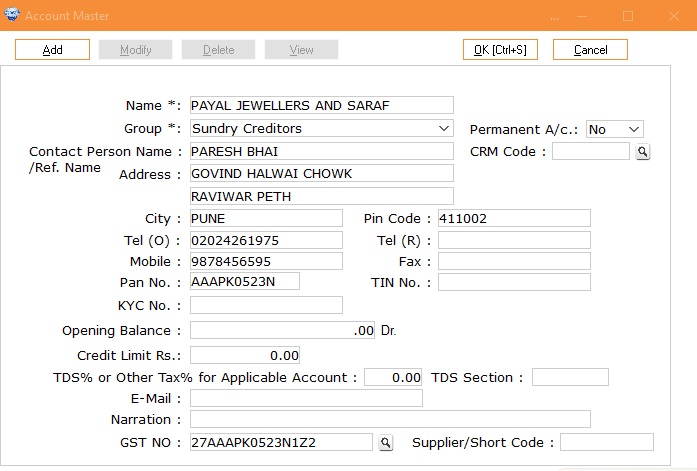
Please fill in the required details in their respective columns.
Manual Entry:
1. Enter all necessary information in the corresponding fields.
2. Click the 'OK' button to save your account information.Automatic Entry (using GST No.):
1. Enter the customer's GST No. in the GST column.
2. Click the search button.
3. The system will automatically retrieve and fill in the following information from the GST portal:
- Name
- Address
- City
- Pincode
- PAN no.Note: Ensure you have the correct GST No. to use the automatic entry feature.
|
Select
Account
|
Select
Account from drop down list, and press enter. (This column will not be
seen on addition mode.) | |
|
Account
Name
|
Enter
Account Name. E.g.: Customer, Supplier, Expenditures, Bank, Loan
etc… | |
|
Group Note:Please
avoid selecting incorrect groups, as certain groups are reserved. Once an
account is created, its group cannot be changed. Examples of reserved
groups include Sale, Purchase, Cash, Bank, etc. For any queries beyond
these suggestions, please consult your accountant or C.A. |
Select
group from drop down list. | |
|
If
Account Is |
Then
Group Should | |
|
Customer |
Sundry
Debtor / Area | |
|
Supplier,
Karagir |
Sundry
Creditor | |
|
Expenditure
Like. Shop, Petrol, Vehicle, Telephone, Electricity, salary, and other
office administration expenses. |
Expenditure
Indirect. | |
|
Freight
& Octroi, Hamali or any Expenditure on Purchase |
Expenditure
Direct. | |
|
Non
Bank Loan |
Unsecured
Loan | |
|
Bank
Loan |
Secured
Loan | |
|
Partner/
Proprietor |
Capital
Account | |
|
Bank
Account |
Bank
/ Bank OCC | |
|
Contact
Person |
Account
key person, who are always in touch with you. | |
|
Permanent
A/C. |
"If
you have been associated with this account for a long time, please select
'Yes'. If this is a temporary account that you do not intend to use in the
future, select 'No' to exclude it from the next financial
year." | |
|
CRM
Code |
If
you want to link the CRM Master which is created earlier with the Account
Master then here you can select the particular CRM and select it. It will
show you the CRM Code here. | |
|
Address1 |
Detail
Address | |
|
Address2 |
Detail
Address | |
|
City |
City
Name. | |
|
Pin
Code
|
Pin
Code of area. | |
|
Tel
(O) |
Office,
Shop, Work Telephone No. | |
|
Tel
(R)
|
Residential
Telephone No. | |
|
Mobile
|
Mobile
No. | |
|
Fax
|
Alternate
Mobile No. | |
|
Pan
No. |
Enter
Permanent Account Number (Income Tax Number). | |
|
Tin
No. |
Enter
TIN No. Of Supplier. | |
|
Op.
Bal
|
Opening
Balance in Amount Note:
if Credit Amount enter (-) e.g. -500.00 OR if Debit Amount
500.00 | |
|
KYC
No. |
KYC
Document no of Customer, Supplier. For e.g. Adhar Card. | |
|
Credit
Limit
|
Enter
the credit limit amount for the account. This feature helps you control
the credit limit. If the credit limit is exceeded while creating a bill,
the system will display the message “Credit limit is Over,”
allowing you to manage and restrict excess
billing. | |
|
TDS
% Or other tax% applicable for Account |
Enter
the TDS percentage for the Karagir or Supplier account. Alternatively, you
can enter other applicable charges, such as credit card fees. | |
|
TDS
Section |
To
set the appropriate TDS section for suppliers or vendors, you need to
select the relevant section based on the type of transaction. | |
|
Email |
Enter
Email id of Customer, Supplier or Karagir. | |
|
Narration |
Write
any special summery or narration of this account | |
|
GST
No. |
Enter
the GST No. of Karagir, Supplier or Registered Customer. | |
|
Supplier/Short
Code |
The
short code/supplier code is used specifically for suppliers/Karagirs. The
main purpose of adding this short code is to easily select the particular
supplier when labeling items or stock, allowing you to identify the source
of the items received. | |
Visual Demo :
|
Account Master Creation
|
Account Master Feature |